Inbound messaging
Website live chat that qualifies visitors and hands them to your team: setup guide
By Viktorio Shopov, co-founder of Sellinger. Published . Last updated . 8 minute read.
A website visitor who asks a question at 9 pm on a pricing page is a lead you can lose by morning. An AI live chat answers at that moment, asks the few questions that tell you whether the visitor fits, and leaves your team a record they can act on. This guide sets one up in Sellinger, tab by tab, using the labels in the app as they were on 25 October 2026. For the choice between a chatbot, human chat and an AI agent, read live chat vs chatbot vs AI concierge first.
One thing to know up front. The live chat agent qualifies and captures, and it hands conversations to people. The widget does not read your calendar itself: it shows your booking link as a button, and the visitor picks a time on your booking page.
What does the agent actually do with a visitor?
From the tools the live chat agent has, it can do these things in a conversation:
- Search your knowledge base for an answer, instead of guessing.
- Show quick reply buttons or a short form when the question has a few likely answers, so the visitor taps instead of typing.
- Save contact details the visitor already typed (email, phone, name, company) without asking them again.
- Add a private note to the lead record: interest, budget, timeline, objections.
- Offer to continue on WhatsApp or by email, and send the visitor to a relevant page on your website.
- Escalate to a human when it cannot help or the visitor asks for one.
It also answers in the language the visitor writes in. Everything it saves lands in the same unified inbox as your other channels.
Step 1: create the widget
Open Channels in the sidebar, then Live Chat. The page is titled "Live Chat Account" and shows four tiles: Active Widgets, Total Conversations, Online Status and Open Sessions. Press Create Widget.
The first tab is Identity & Placement: a Widget Name (for example "Marketing site"), a Position (Bottom right or Bottom left), a Button Size and an optional Avatar URL. Visual Theme sets the colours. Make one widget per site or per brand, so each has its own persona and its own conversation list.
Step 2: the greeting, the persona and what it knows
Open Persona & Goal. The Greeting Message is the first thing a visitor sees when the chat opens; the field shows "Hi! How can we help you today?" as its example. Below it you choose a Persona, which defines how the agent communicates. Keep the greeting to one line that says what the chat can help with.
Then fill the two tabs that decide whether answers are good. Knowledge holds what the agent searches: pricing, what you do and do not offer, who you serve, the questions sales gets every week. Rules holds what it must and must not do. A visitor asking about something you have not written down is where a chat agent goes wrong, so write those answers down before you publish. The help pages on the knowledge base and writing rules cover both.
Step 3: decide what "qualified" means
Qualification is the part you design. The agent will ask what you tell it to ask, so pick three or four questions, not ten. A made up example for a B2B software site:
| Question | Why it matters | How it is asked |
|---|---|---|
| What are you trying to solve? | Routes the answer | Free text |
| How big is your team? | Fit by size | Quick reply buttons |
| Are you comparing tools or just looking? | Timing | Quick reply buttons |
| What work email should we send details to? | Contact | The lead capture form |
Put the question list in the persona instructions, and put the "fits" and "does not fit" rules in Rules. The example is made up; use your own criteria.
Now open Lead Capture. It is titled "Lead Capture & Qualification" and has a switch, Enable lead capture form: "Show a form to collect visitor information before or during chat." You set a Form Title (the field shows "Before we start" as an example), a Subtitle and an optional Incentive Text. Under Capture Fields you switch on any of Name, Work email, Company and Phone. Show after N messages controls when the form appears, so you can let the visitor get an answer first. A later form means the visitor gets a first answer before being asked for anything. Start with 2 and compare how many visitors finish the form.
Two more tabs help get the first message in front of visitors. Starter Buttons are quick actions shown when the chat opens. Each has a button label, for example Pricing, and a message sent on click. Proactive Chat opens a popup from visitor behaviour: a trigger of Time on page (seconds), Scroll depth (%) or Exit intent, plus a page pattern such as /pricing. Use it on the pricing page and nowhere else at first.
Step 4: set the handoff and the hours
Open Routing & Handoff, titled "Routing & Handoff Rules": "Configure when and how conversations are escalated from the AI agent to a human operator."
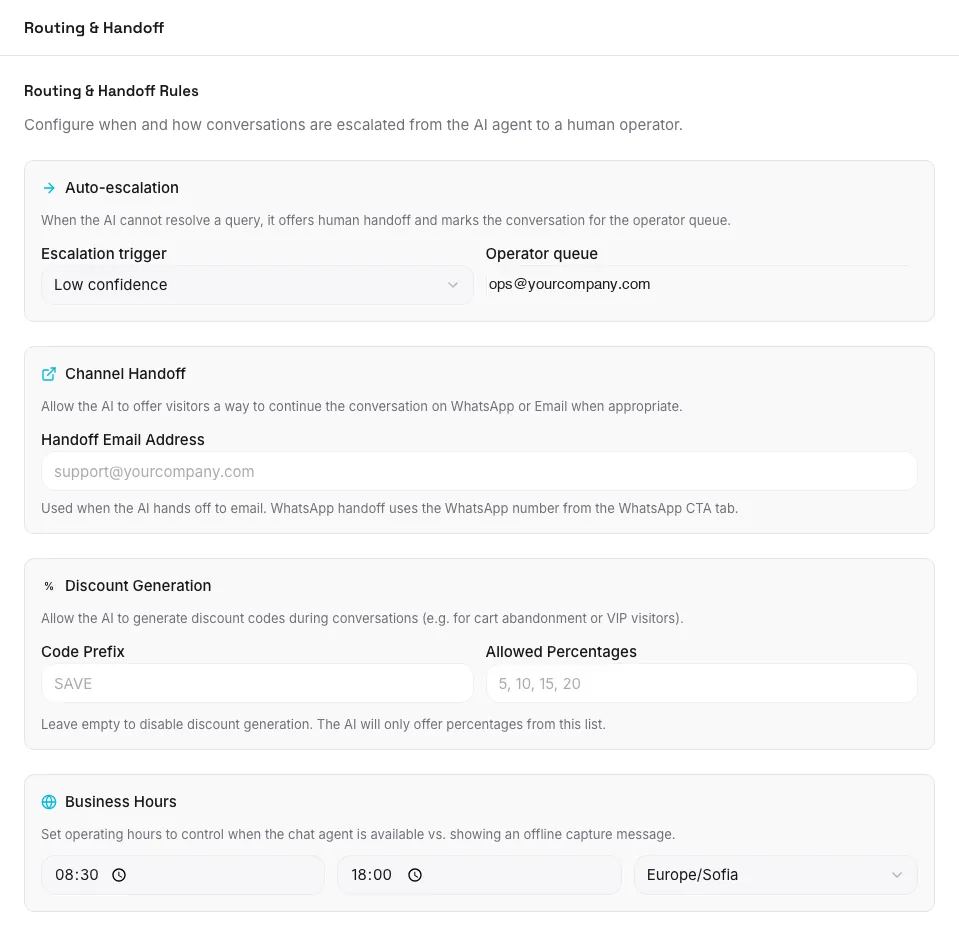
- Auto-escalation. Choose an Escalation trigger: Low confidence, Pricing or contract question, or Visitor asks for a human. The Operator queue is the address that receives the escalation. For a B2B site, Pricing or contract question is usually the one that matters.
- Channel Handoff. Lets the agent offer the visitor a way to continue on WhatsApp or by email. It uses the Handoff Email Address you enter, and the number from the WhatsApp CTA tab for WhatsApp.
- Discount Generation. Mostly for shops. Leave the code prefix empty and it stays off.
- Business Hours. A start time, an end time and a timezone, to control when the agent is available and when it shows an offline capture message.
Decide before launch who reads the operator queue and how fast. A good escalation sent to an inbox nobody opens is worse than no chat. The live chat handoff message template has wording for the moment the agent passes the visitor on.
Step 5: install the script tag
Open Install & Diagnostics. The Embed Code block reads "Paste this snippet before the closing </body> tag of your website." The snippet is a single script tag, shown in the screenshot, with an address on app.sellinger.ai and your widget ID in it.
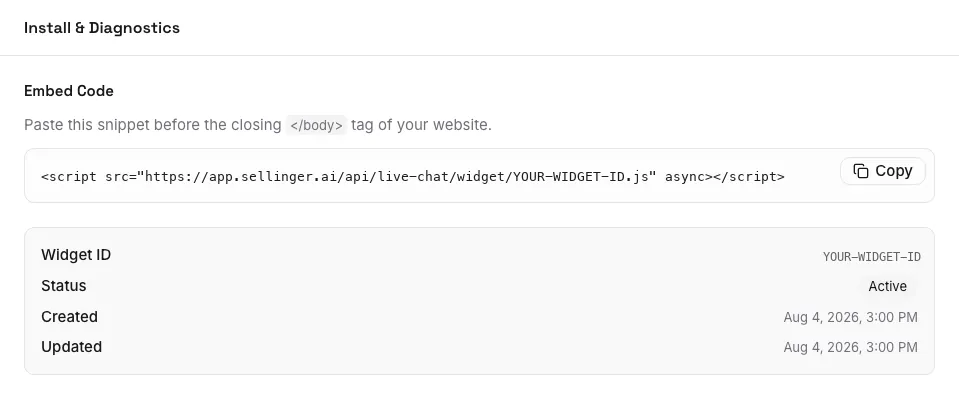
Do not type the ID by hand. Press Copy and use the tag exactly as the app shows it, because it carries your own widget ID. Paste it into the template of your site, a tag manager or your CMS footer. On 25 October 2026 we requested the script of a test widget from that address and it returned the widget script, so the tag works as shown. If your site runs on Shopify, follow the Shopify install guide instead.
After pasting, open your site in a private window. If the button does not appear, check that the widget is switched on (the toggle on its card reads Active) and that no content blocking rule on your site stops third party scripts.
Step 6: test it before visitors do
Use the Preview tab to see the widget inside the settings. Then use the Sellinger Test page: choose Live chat, pick the widget, and play the visitor yourself or let an AI visitor play it. Nothing is sent to anyone. The walkthrough is in test your AI SDR before it contacts a real lead. Ask the three questions your sales team gets most, plus one the knowledge base cannot answer, and check that the agent says it will get a precise answer instead of inventing one.
After launch: what to read
Back on the Live Chat page, the Recent Sessions table lists each visitor, the widget, the status and when the chat started. Open a few every week. Look for questions the agent could not answer, and add them to Knowledge. Look for chats where the visitor left after the form appeared, and move the form later. Read the notes the agent saved, because they are the cheapest market research you will get.
Live Chat plans run from $19 a month, and the messaging modules include a 30 day free trial with no card, so a first widget on one page costs very little to try.
Common questions
How do I install the Sellinger live chat widget?
Does the live chat book meetings by itself?
What does it cost?
What happens outside business hours?
Can I try the agent before the widget goes live on my site?
How Sellinger helps
Read how it works on See the Sellinger live chat, or see a real campaign in Read the Lamothermic case study.
Sources
- Sellinger web app, Channels, Live Chat settings (screenshots in this post, test workspace, no customer data)
- Sellinger pricing
- Sellinger: how to install the live chat widget on Shopify




