AI SDR
Test your AI SDR before it contacts a real lead: a walkthrough of the Test page
By Viktorio Shopov, co-founder of Sellinger. Published . Last updated . 8 minute read.
An AI sales agent writes in your name, so the first time you read what it says should not be when a prospect does. The Sellinger Test page is built for that. You talk to your agent the way a real lead would, see exactly what it writes, tell it what to change, and go live only when you like the result. The page puts it in one line: "Nothing here is ever sent to anyone."
This post walks through the page as it looked on 25 October 2026, step by step, with what to try at each stage. Every label below is copied from the app. The screenshot comes from a test workspace with no customer data, and the widget name in it is replaced with a generic one.
Why test before you launch?
Because the failures that cost you a lead are usually visible in the first three messages. A persona that sounds stiff, a goal that asks for a call too early, a missing answer in the knowledge base, an exclusion rule that is too loose. You can find these by reading real conversations after launch, but each one costs a lead who will not come back. A test costs you ten minutes.
There is a second reason. When you change a persona or a rule later, you want to see the effect before it reaches people. The Test page lets you try a change on a conversation first, then publish it.
Where do you find the Test page?
Open Test in the sidebar, under Automation, right below Agent Campaigns. If you do not see it, the sidebar may be on the Lite view, which shows a shorter menu; switch to Advanced or open the page at app.sellinger.ai/test. When a workspace does not have access yet, the page says "Test isn't available on your workspace yet" and that agent testing is rolling out gradually. On our test workspace it was available.
How do you set up a test?
The page is one form with numbered steps and a summary card called Your test on the right.
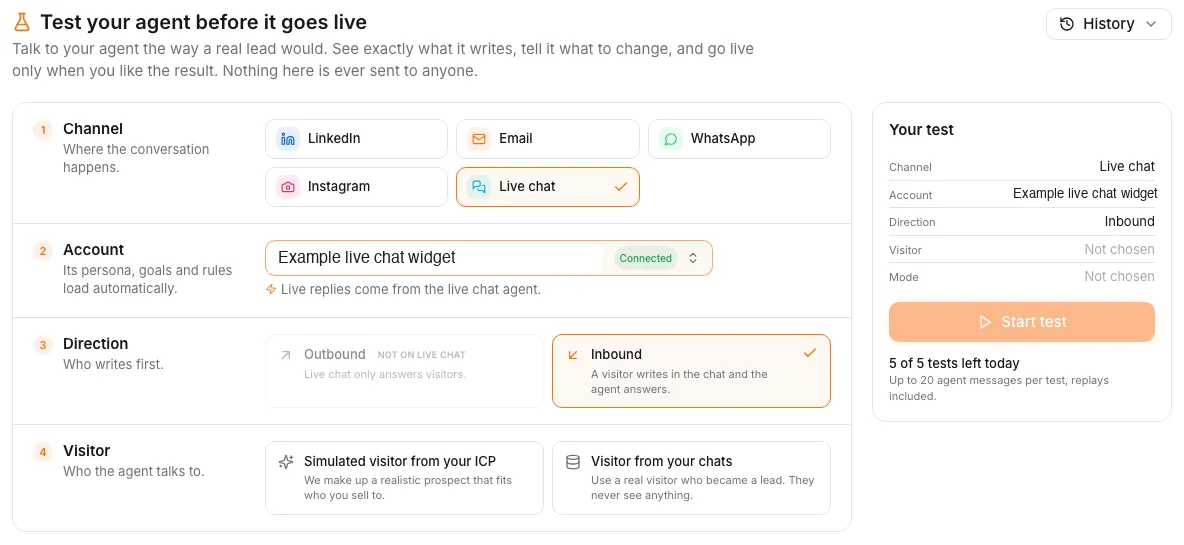
- Channel. "Where the conversation happens." Choose LinkedIn, Email, WhatsApp, Instagram or Live chat.
- Account. "Its persona, goals and rules load automatically." Pick one of your connected accounts. This is the point of the test: the agent that answers is the one your real leads would get. If no account is connected on the channel, the page says so and offers a Connect one button.
- Direction. "Who writes first." Outbound means the agent reaches out first, like a real campaign. Inbound means the lead writes first and the agent answers. Live chat only offers Inbound.
- Connection request. LinkedIn outbound tests only. Choose With a note or Without a note, so you can test both ways an invite goes out.
- Lead (or Visitor on live chat). Choose a Simulated lead from your ICP, where Sellinger makes up a realistic prospect that fits who you sell to, or a Lead from your CRM, which uses a real lead's profile. You can start fresh, "as if the agent had never talked to them", or continue from the real conversation.
- First message. Inbound tests only. Either write the first message yourself, or let an AI write it from a scenario: "Asked the price from an ad", "Just says hi", "Wrong number", or a custom description. On Instagram there is also "Replied to your story".
- Mode. "Who plays the lead." Choose You play the lead (on live chat, You play the visitor) or AI vs AI, where an AI buyer plays the lead while you watch and you can step in at any time.
The Your test card fills in as you go. When every step is chosen, Start test lights up, with a counter underneath that reads "5 of 5 tests left today" on a new workspace and a note that a test holds up to 20 agent messages, replays included.
Which test conversations are worth running?
Do not run one friendly conversation and call it done. The AI buyer has six behaviours you can pick, each with its own description in the app. Run at least these:
| Behaviour | What the app says | What you are checking |
|---|---|---|
| Interested | Has a real need, asks practical questions. | Does the agent answer the question that was asked and move toward your goal? |
| Skeptical | Distrusts sales messages, wants proof. | Does it stay calm and avoid claims it cannot back? |
| Busy | Answers rarely and in one line. | Does it keep messages short and avoid nagging? |
| Wrong person | Not their job, may point elsewhere. | Does it ask who handles the topic instead of pushing on? |
| Price objection | Likes it, pushes back on cost. | Does it quote only what your knowledge base supports? |
| Custom | Describe how the lead behaves. | Your real hard case, in up to 1,000 characters. |
For custom, describe a lead from your own market, for example a founder of a small agency who was burned by an outsourced sales rep and asks about contracts. This is made up for the example. The page itself suggests a similar one as placeholder text.
Then play the lead yourself at least once. You know which questions your real buyers ask in their second message. The agent should survive those.
How do you rate what the agent wrote?
The right side of the screen has four parts. Who we think they are shows the lead the agent is writing to and what it knew. Latest agent message shows the newest reply with a thumbs up (Like) and a thumbs down (Don't like). If you use the thumbs down, a box asks "What do you want to change?" and saves your note. Coach is a chat where you message the coach in plain language and it proposes a fix. The Updates box collects every suggested fix.
A fix can target five things: the Persona, Custom Directions, Goals, Exclusion Rules or the Knowledge Base. Each suggestion appears as a card with a status: Suggested, Trying, Live, Skipped or Undone. From a Suggested card you can Try it on the current conversation after adjusting the text, Publish to live, or skip it. Nothing live changes until you publish.
What happens when you publish?
Publishing is the only step in the whole page that touches your real setup. The confirmation says it directly: real leads get the change from the next message on. Publishing checks the live value first, and so does Undo. Each live card has an Undo, and the old value comes back.
If the same setting exists on your other accounts, Also apply to lets you pick which of them get the same fix. Each one gets its own card in Updates, and you undo it there.
When you end a test with suggested updates still open, a dialog lists them. You can Publish all, Review updates, or leave them for later. They stay saved on that test, and you can reopen it from History.
What a test cannot tell you
A test shows how the agent writes and reacts. It does not show how your market will answer. The AI buyer is a language model playing a role, and its objections will be more polite and more consistent than real ones. So treat a clean test as "no obvious problem found", not as proof of results.
Also remember what the test does not cover. It does not check that your account is connected, that your sending limits are right or that your lead list is the right one. For those, see how to set up your first AI SDR in one afternoon. After the test, start small and read real replies, which a 30 day pilot is designed for. And if you want a second layer of safety, you can approve messages before they send for the first days.
A ten minute test plan
- Pick the account you will launch first, and the channel it uses.
- Run one AI vs AI test as Interested and read the whole thread.
- Run Skeptical, Price objection and Wrong person, one test each. Give a thumbs down to any message you would not send yourself.
- Run one test where you play the lead and ask your real second question.
- Read the Updates box. Publish the fixes you agree with, skip the rest.
- Run the same scenario again to see whether the change did what you wanted.
That is five tests at most, which is exactly the daily allowance a new workspace showed. Plan the work around it rather than burning all five on the first scenario.
Common questions
Does a test send anything to a real person?
How many tests can I run?
Which channels can I test?
Does a good test predict my reply rate?
What happens when I publish a suggested fix?
How Sellinger helps
Read how it works on See how an agent campaign is set up, or see a real campaign in Read the Lamothermic case study.
Sources
- Sellinger web app, Test page (screenshots in this post, test workspace, no customer data)
- Sellinger: how to set up an agent campaign
- Sellinger: how to approve messages before they send




