Leads, data and signals
Clean a CRM export before importing it into an AI SDR: a checklist and a dry run
By Viktorio Shopov, co-founder of Sellinger. Published . Last updated . 8 minute read.
Most of the trouble with an AI SDR starts with the list, not the agent. An export from a CRM carries years of drift: two spellings of every header, people entered three times, phone numbers in six formats, contacts who asked to be left alone. The agent then writes to whatever you give it. A few minutes of cleaning before the import saves you from contacting the same person twice and from a lead pool the agent cannot use.
This checklist follows what the Sellinger CSV importer asks for and checks, as it read on 25 October 2026. It ends with a dry run you can do with a file of three made up rows.
What does the importer need from the file?
Three rules, taken from the screen itself. One lead per row. At least one of Email, LinkedIn URL or Phone in each row, which the mapping step spells out: "At least one of Email, LinkedIn URL, or Phone is required." And a .csv file up to 50MB. A file that is only a list of LinkedIn profile URLs with no header row also works.
Everything else is optional, but the more of it you map, the better the agent can write. Sellinger has fifteen standard fields: First Name, Last Name, Full Name, Email, Phone, Company, Job Title, LinkedIn URL, Website, Location, Industry, Notes, Tags, Segment and Instagram Handle. If your team has custom lead fields, extra columns can be mapped onto those.
The cleaning checklist
1. One lead per row
Break out rows that hold two contacts ("Anna / Boris"). A CRM export that lists one company with several contacts in one cell will import as one lead with a muddled name.
2. Rename headers to names the importer recognises
The importer matches your headers to its fields automatically. It ignores case, treats dashes and underscores as spaces, and accepts common aliases. A few of them:
| Sellinger field | Headers it recognises (examples) |
|---|---|
| Full Name | full name, name, contact name |
| First Name | first name, firstname, given name |
| email, e-mail, email address, mail | |
| Phone | phone, phone number, mobile, telephone |
| Company | company, company name, organization |
| Job Title | job title, title, position, role |
| LinkedIn URL | linkedin, linkedin url, linkedin profile, profile url |
A header that is not on the list simply shows as Skip on the mapping screen, and you can pick the column by hand. Renaming first just saves clicks. Delete columns you will never use, such as internal IDs and owner names, so they do not tempt anyone to map them.
3. Remove duplicates inside the file
The importer checks for repeats. On the Confirm step it lists duplicate rows within the file, and it checks each row's email first, then LinkedIn URL if there is no email, then phone. That order means two rows with different emails but the same LinkedIn URL are not caught by this in-file check, so sort by LinkedIn URL once yourself.
Leads already in your account are a separate check. They are skipped as duplicates and reported with the row number, with a link to the lead that was already there. The server compares emails in lower case and phone numbers after normalising them, so "+1 (800) 555-1234" and "+18005551234" count as the same number. The help article on CSV imports rejected as duplicates covers the cases that surprise people.
4. Check the LinkedIn URLs
The row check reports "unparseable LinkedIn URLs" and URLs "corrupted by file encoding". Keep one profile URL per person, in the form linkedin.com/in/name. The importer tidies the common variations (www, capital letters, a trailing slash, tracking text after a question mark) into one standard address, but it cannot guess a profile from a name.
5. Save as UTF-8, under 50MB
Excel on some systems saves CSV in a Windows code page, which turns accented names and URLs into garbage. The importer decodes a non-UTF-8 file as Windows-1252 and repairs garbled text, and then shows a notice, "Character encoding corrected". That is a safety net, not a reason to skip the step: choose "CSV UTF-8" when you save. Split files over 50MB.
6. Remove people you should not contact
A CRM export holds people who opted out, bounced, are customers or are competitors. Strip them before the upload. Contacting people with no basis for it is the fastest way to a spam complaint, and the rules differ by country. Read our outreach rules; this is not legal advice.
7. Decide on tags, segment and notes now
A Tags column and a Segment column survive the import and make the leads easy to find later. Notes are stored on the lead, so keep them factual: "met at a trade fair in March", not "difficult". If you plan a lead segmentation, put the segment in the file.
A made up example
This table is invented to show the work. The left side is how a messy export looks; the right side is the cleaned row.
| Messy cell | Problem | Cleaned |
|---|---|---|
| Person.Two@Example.com (with a trailing space) | Space and capitals | person.two@example.com |
| +1 555 0100 / +1 555 0199 | Two numbers in one cell | One number per cell |
| linkedin.com/in/sample-two/?utm=x | Tracking text and trailing slash | https://www.linkedin.com/in/sample-two |
| Sample Person Three, CEO | Name and title in one cell | Full Name and Job Title in two columns |
| (blank email, blank phone, blank URL) | No contact route | Delete the row |
The dry run: test with three rows
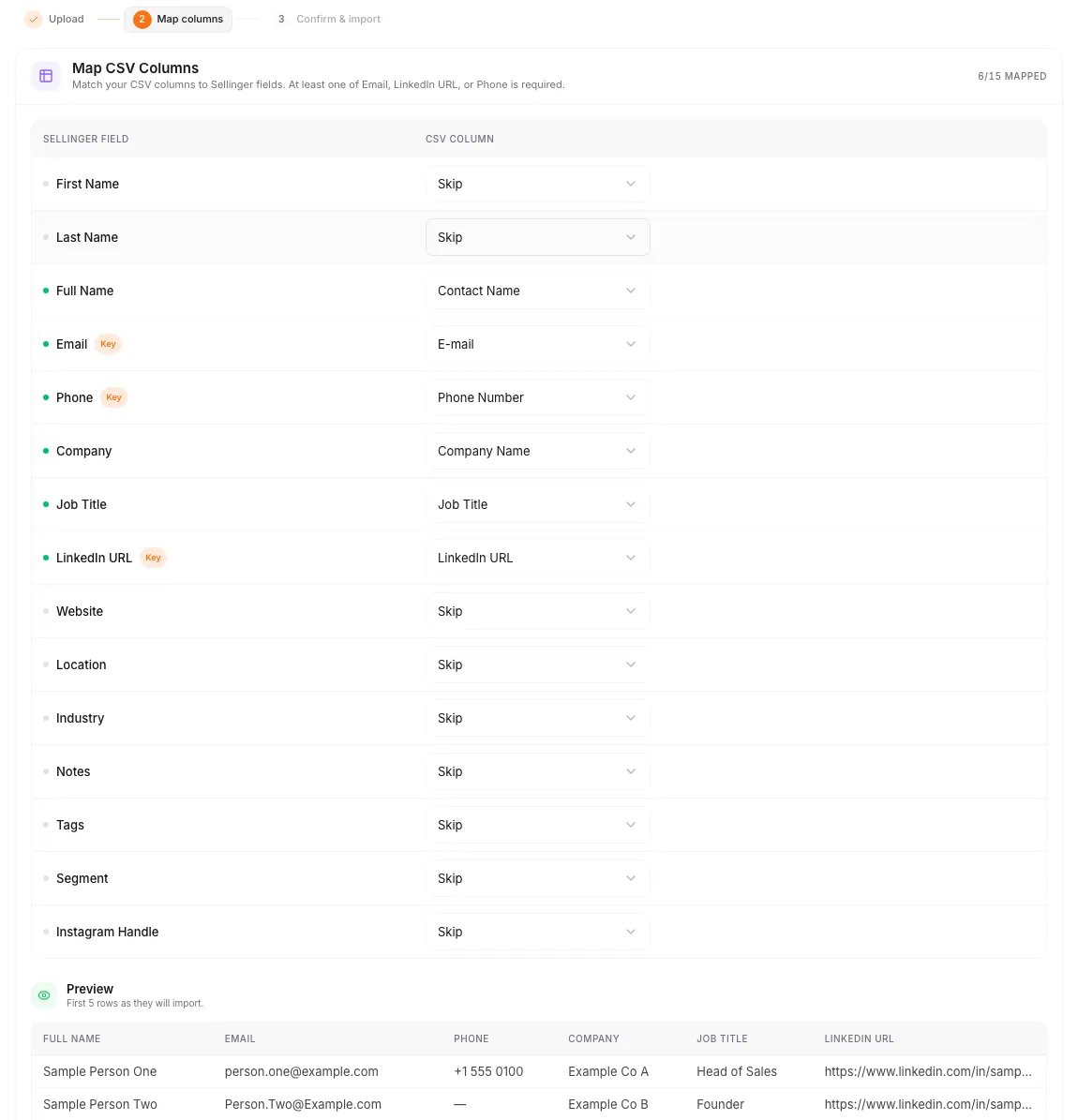
Make a file of three made up rows with example.com addresses and a header such as Contact Name, E-mail, Company Name, Job Title, Phone Number, LinkedIn URL and Lead Source. Then open Add Leads in the sidebar and choose the CSV tab. The steps are Upload, Map columns, and Confirm and import.
On the mapping screen the page title is "Map CSV Columns", with a counter in the corner that reads "6/15 mapped" for our file. Our headers matched on their own: Contact Name went to Full Name, E-mail to Email, Company Name to Company, Phone Number to Phone and LinkedIn URL to LinkedIn URL. Lead Source was not recognised and stayed on Skip. The fields marked Key are the three identifiers. Below the table, a Preview shows the first five rows as they will import.
Press Next and you reach Confirm Import: "Review the run, then pick where the leads go." Two tiles show Leads to import and Mapped fields. An ICP group is required, and the field is marked with an asterisk. A switch reads Skip automatic relevance check, and its text explains that when it is on, imported leads will not be auto-marked Irrelevant before outreach. Read that line and decide on purpose. A Segment Name is filled from the file name. If the row check finds problems, an amber box states how many of the rows will import and how many issues it found, with the reason for each row.
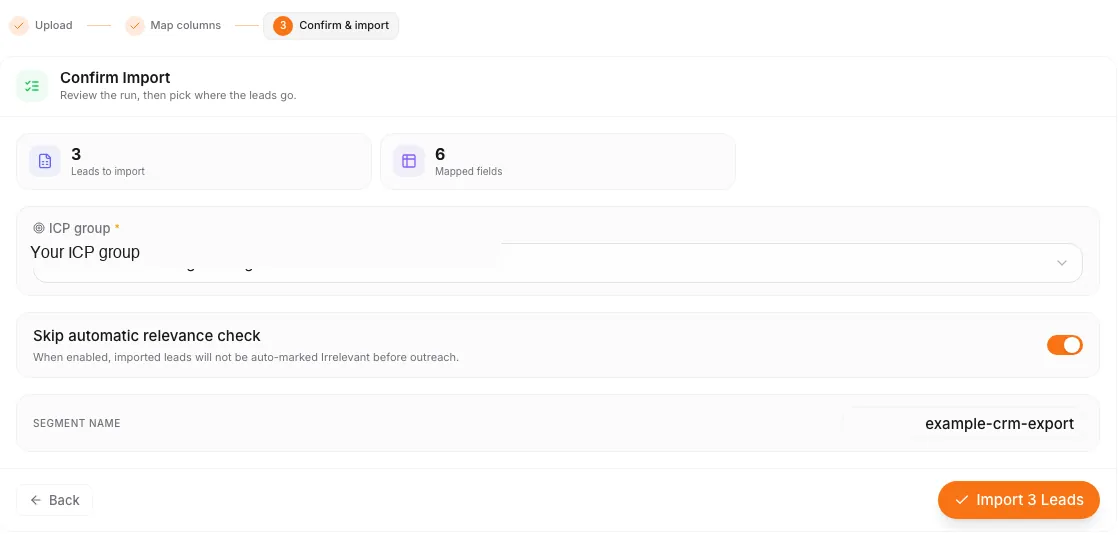
In the version we read, the upload, mapping and row check ran in the browser, and the import was sent only when the final button, labelled with the lead count, was pressed. So you can leave the test at this screen. Use it to find out whether your real export would map cleanly, then fix the file and do it again with the real one.
After the real import
When you press import with your real file, choose where the leads go: unassigned in the CRM, or a campaign with the accounts it sends from. Without an agent attached, nobody will contact a lead, so choose the destination on purpose. The CSV tab keeps a Recent imports list, and each run has an import report where you can see duplicates and failed rows and retry the failed ones. The leads appear in your CRM under the segment name, with the source CSV Import. The CSV file itself is not stored after upload.
From there, the help article on CSV import has the step list in short form, and how to build a B2B lead list covers what to do if your CRM export is too thin to start from.
Common questions
What is the minimum a row needs to import?
How big can the file be?
What happens to leads that are already in my account?
Do I need to fix the file encoding myself?
Can I test an import without saving anything?
How Sellinger helps
Read how it works on See the Sellinger agentic CRM, or see a real campaign in Read the Lamothermic case study.
Sources
- Sellinger web app, Add Leads, CSV tab (screenshots in this post use a made up three row file in a test workspace)
- Sellinger: how to import leads from a CSV file
- Sellinger: outreach rules




